Preventive maintenance checklist for computers and laptops
What to check on your company's computers and laptops every month, quarter, six months and year, with commands to check disk and battery health and a simple maintenance log.
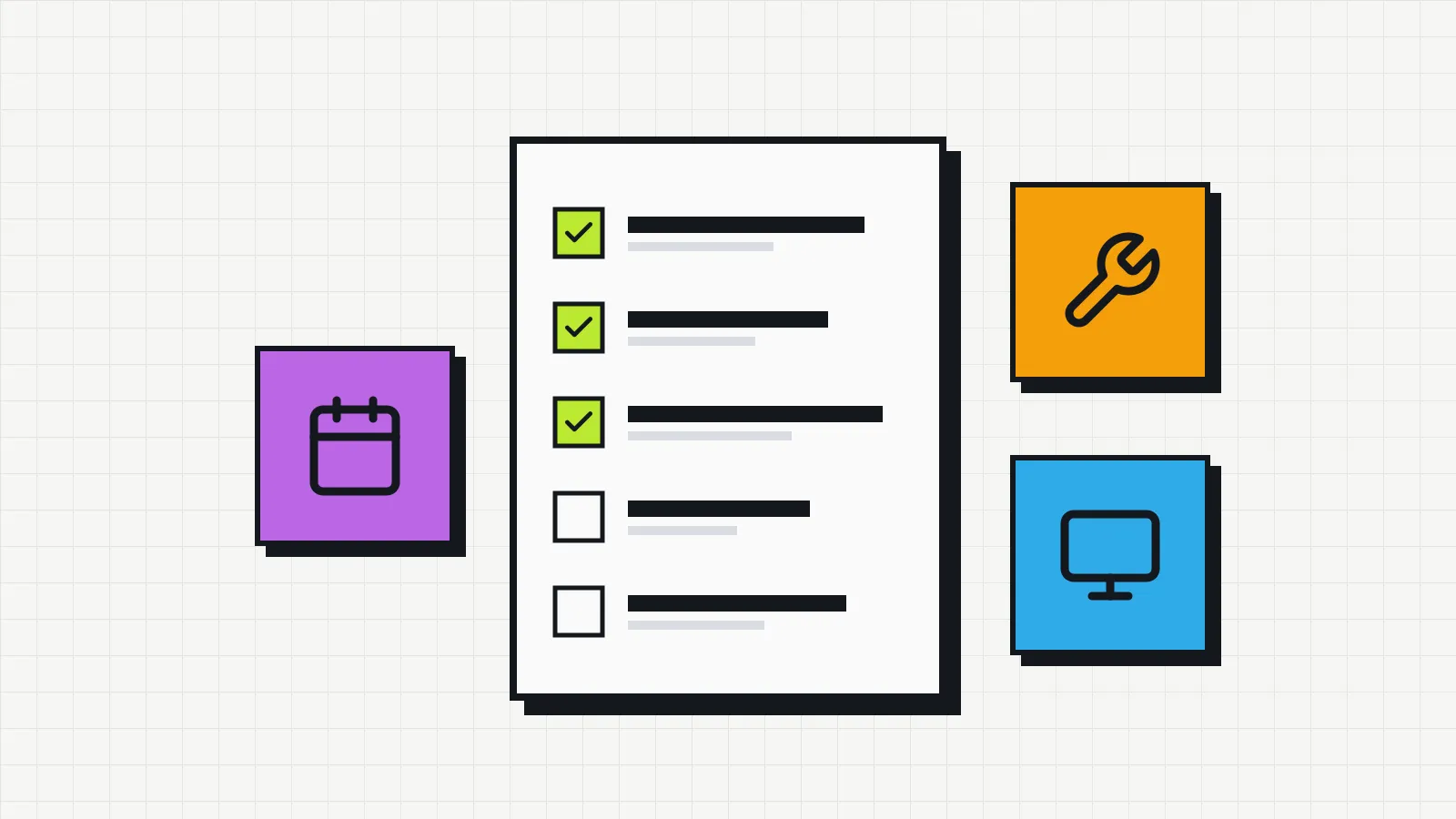
Preventive maintenance for computers is the set of checks done before a device fails: updates, backups, disk and battery health, cleaning and warranty tracking. The checklist below is organized by frequency and written for small companies, where IT is one person or someone who also has another job. Each item takes a few minutes. The hard part is remembering to do it, which is why the last part of the article covers how to keep a record.
Before you start
- Have the list of devices. The checklist is applied machine by machine, with the owner and location of each one. If you do not have that list yet, the guide on how to do an IT inventory shows where to begin.
- Decide where to record the work. Date, device, what was done, who did it and what was found. Without that record, maintenance leaves no trail to support replacement decisions.
- Check the warranty before opening anything. If the device is under warranty, read the manufacturer’s terms before opening the case or replacing parts.
- Separate what can be done remotely. Updates and backup checks can be handled over the network with remote management tools. Cleaning and physical inspection need the device in hand.
Every month
Updates and security
- Operating system updates installed: Windows Update on Windows, Software Update on macOS. Make a note of machines with updates pending for weeks, since they usually have some underlying problem.
- Antivirus running with up-to-date definitions. On Windows, check Windows Security.
- Browsers and the most-used applications up to date.
Backup and storage
- This month’s backups finished without errors. Open the backup tool’s report instead of relying on the absence of an alert.
- Free disk space. A nearly full disk slows the system down and makes updates fail.
Access
- Only the people who use the device have accounts on it. Remove accounts of former employees and forgotten local accounts.
Every three months
Disk
-
Disk health. On Windows, open PowerShell and run the command below; the expected result is
Healthyfor every disk.Get-PhysicalDisk | Select-Object FriendlyName, MediaType, HealthStatusOn macOS, use Disk Utility and its First Aid option. Free tools such as CrystalDiskInfo show the disk’s self-monitoring data (S.M.A.R.T.) in more detail.
Laptop batteries
-
Battery capacity. On Windows, the command below creates an HTML report in the current folder; compare the design capacity with the full charge capacity.
powercfg /batteryreportOn macOS, the information is under System Settings, Battery, Battery Health.
-
Signs of a swollen battery: a lid that will not close properly, a raised touchpad, a case coming apart. In that case, stop using the laptop and send it for service, because a swollen battery is a fire risk.
Day-to-day use
- Programs that open at startup. On Windows, check Task Manager, Startup apps, and disable what is not needed.
- A noisy fan or a device running hot under light use. Both point to dust or a blocked air vent.
- Chargers and cables with no frayed wires, loose plugs or unusual heat.
Backup
- Restore test: recover a file from the backup and check that it opens. A backup that has never been tested may fail on the day you need it.
Every six months
- External cleaning of keyboard, screen and case with a microfiber cloth. For screen cleaning products, follow the manufacturer’s guidance.
- Clean the air vents with compressed air, with the device switched off and unplugged. In dusty environments, such as construction sites, workshops or street-level shops, do it more often.
- BIOS/UEFI and firmware updates through the manufacturer’s tool, such as Dell Command Update, Lenovo Vantage or HP Support Assistant. Keep laptops plugged in and do not interrupt the process.
- Check the asset tag and the owner: is the person who has the device the one in the record? The guide on IT asset tagging explains how to keep that record accurate.
Once a year
- Warranties expiring in the next twelve months. Fix pending faults while coverage lasts and decide whether an extended warranty is worth it.
- Operating system still supported. Free support for Windows 10 ended on October 14, 2025, and machines that do not meet the Windows 11 requirements go on the replacement list.
- Maintenance history of each device: how many times it went in for repair, how much it cost, how many days it was out of use. These figures feed the replacement decision described in the article on the IT asset lifecycle and can be compared with the book value calculated through IT equipment depreciation.
- Devices that keep overheating even after cleaning. It may be time to replace the thermal paste, a job for a service technician.
- Who has administrator access on each machine, and whether the backup policy still covers the data that matters.
When a device changes hands
This check happens outside the calendar, every time a device moves to someone else:
- Copy the previous user’s data, following company policy.
- Reinstall the system or remove the previous user’s profile.
- Sign out of personal accounts, such as a personal Microsoft account, Apple Account or Google account.
- Physical inspection: screen, keyboard, battery, charger.
- New employee equipment agreement signed and owner updated in the record.
How to log maintenance
The log has to answer two questions months later: what was done to this device and how much it has cost so far. A minimal format, with illustrative values:
| Date | Asset number | Type | What was done | Cost | Days out of use |
|---|---|---|---|---|---|
| 04/08/2026 | PAT-0142 | Preventive | Air vents cleaned, BIOS updated | $0 | 0 |
| 07/22/2026 | PAT-0142 | Corrective | Battery replaced, out of warranty | $120 | 3 |
Log preventive work too, even when nothing turns up. Over time, patterns appear: a model whose battery always fades before year three, a department where devices run hotter.
Logging maintenance in Invbox
In Invbox, each maintenance entry has a description, a cost and a date. It shows up on the asset’s timeline, and the dashboard adds up the cost of all logged maintenance. The form has no fields for the type or days out of use; to keep the columns of the table above, start the description with the type and include the downtime, as in “Corrective: battery replaced, 3 days out of use”.
The maintenance entry and the device status are independent. When a laptop goes out for repair, set its status to maintenance and switch it back to active when it returns. That way the list shows which devices are out of use at any given moment.
For the yearly warranty review, each asset’s record shows how many days of coverage are left. On the Pro plan, the Excel export of the asset list includes the warranty end date, which you can sort to see everything expiring in the next twelve months at once.