IT asset tagging: how to track company equipment with asset tags or QR codes
A step-by-step guide to numbering, labeling and tracking your company's IT equipment, with the differences between traditional asset tags and QR code labels.
IT asset tagging means giving each piece of equipment a unique number, attaching that number to the device itself and keeping an up-to-date record of where it is, who has it and what state it is in. The number can go on a traditional asset tag or on a label with a QR code. The choice changes how the label is read; registration, moves and audits work the same way in both cases.
An IT inventory is the survey that shows what exists today. Asset tracking starts from it and covers the handovers, swaps, repairs and disposals that happen until the next count. The eight steps below follow that order.
1. Decide what gets an asset number
For accounting, fixed assets are what goes on the balance sheet. IT also cares about anything that stores data or gives access to company systems, even when it is cheap. An old phone used only to receive two-factor codes is worth little and, if it disappears, causes plenty of work.
A list that works for most small companies:
- laptops, desktops and servers;
- monitors;
- phones and tablets;
- printers and multifunction devices;
- routers, switches and other network equipment.
Mice, keyboards and cables usually stay out. Low-cost items can often be expensed right away instead of depreciated, as the article on IT equipment depreciation explains, and the company decides whether it still wants to track them.
2. Create a numbering scheme that never needs to change
The asset number stays with the device from start to finish. A few rules prevent rework:
- Use a simple sequence with a prefix and leading zeros, such as
PAT-0001,PAT-0002. The zeros keep the list in the right order when it is sorted as text in a spreadsheet. - Keep location and department out of the number. The laptop in Finance today will be in Sales next year, and the number would still say “Finance”.
- Never reuse numbers. The number of a retired device is retired with it, so its history does not get mixed up with a new one.
- Record the serial number too. The asset number is the company’s; the serial number is the manufacturer’s. Both go into the record, and the serial number is the one the warranty service will ask for.
If the company has several entities or branches, a prefix per site (NY-0123, LDN-0045) can help, as long as moving a device between sites does not require a new label. When in doubt, keep a single sequence and record the site in the asset record.
Invbox generates the asset number for each new record, using the prefix set in the company settings. If you already have numbered tags, you can type the existing number instead.
3. Register each device
The record brings together what you know about the item:
| Field | Example |
|---|---|
| Asset number | PAT-0142 |
| Type, make and model | Lenovo ThinkPad E14 laptop |
| Serial number | Read from the manufacturer’s label |
| Purchase date and price | 03/2025, $1,200 |
| Invoice and supplier | Invoice 18532, supplier X |
| Warranty end | 03/2028 |
| Owner | Name of the person using it |
| Location | Head office, 2nd floor / remote |
| Status | In use, in stock, under repair, retired |
Record the invoice number and keep the file in a folder organized by that same number. The invoice is needed for warranty claims, insurance and accounting, and it tends to be the hardest document to find three years later.
Invbox has four statuses: active, maintenance, inactive and disposed. A device sitting in stock can be marked inactive, and a retired one, disposed. If you already have a spreadsheet, you can import it as CSV or Excel: the system uses the serial number to recognize devices that are already registered and adds any new owners, locations and suppliers to its reference lists.
4. Choose between asset tags and QR code labels
Traditional asset tags
An asset tag shows the number and, usually, the company name. The most common types are:
- Aluminum, engraved or printed. The most durable option, it withstands cleaning and wear.
- Polyester labels. Cheaper, printed by a supplier or in-house with a label printer.
- Tamper-evident or “VOID” labels. They tear or leave a mark when someone tries to remove them, which makes it harder to swap tags between devices.
To check a tag, someone reads the number and looks it up in a list or types it into the system. It works, though typing is where errors creep in.
QR code labels
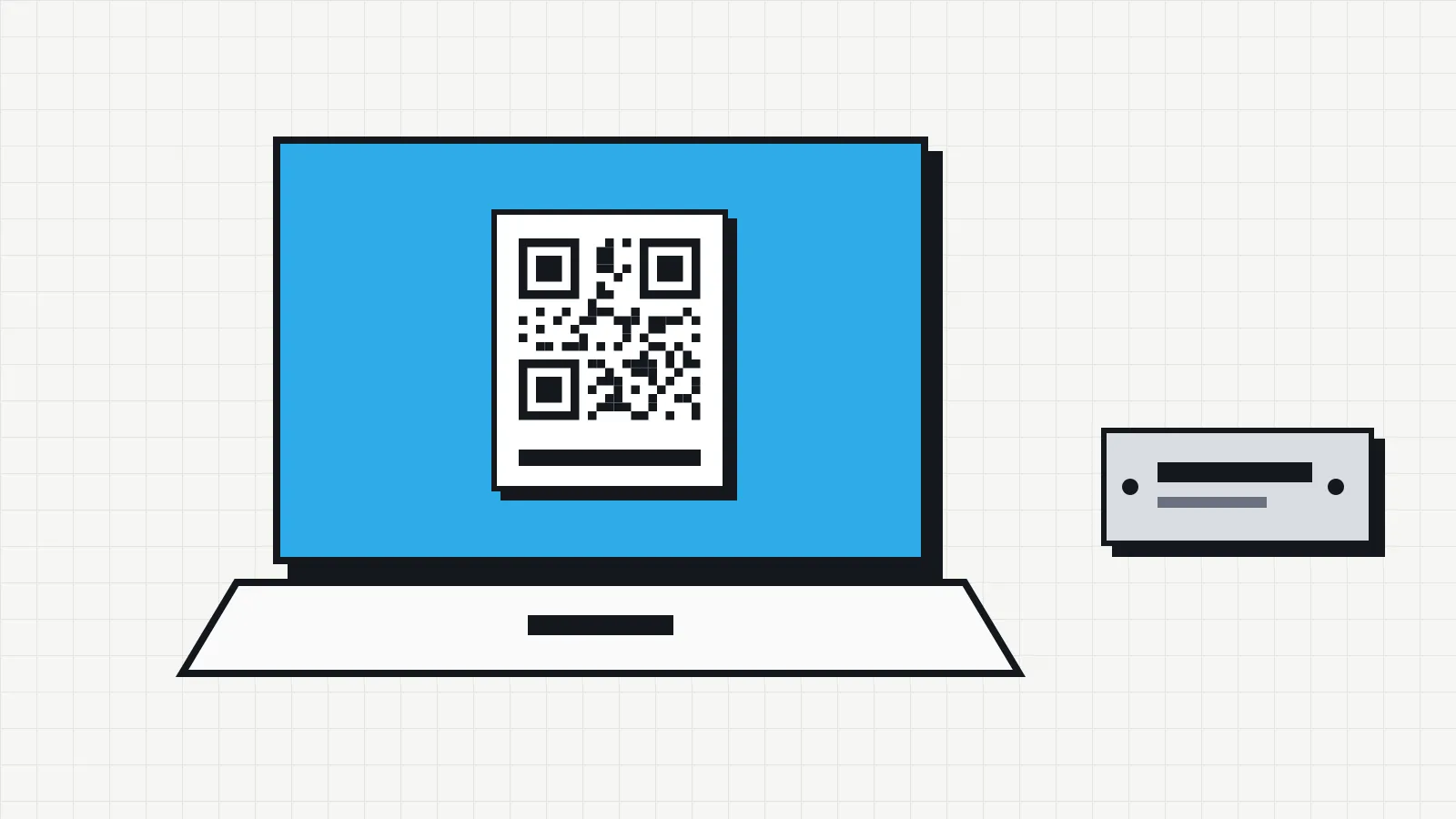
A QR code label stores the asset number or a link to the device’s record. During an audit, a phone camera reads the code and opens the right record with no typing. It is good practice to print the number as text next to the code, so the label stays readable if the QR code gets scratched.
The code should carry only the identifier or the link. The owner’s name and other personal data stay in the record, behind a login, and should not be printed on a label anyone can read. The QR codes Invbox generates follow this rule: they contain only the address of the asset in the system.
Plain paper labels fade and peel. For devices that travel, such as laptops, choose polyester or vinyl printed on a thermal transfer printer with a resin ribbon, or ask your asset tag supplier for an aluminum version with a QR code.
Comparison
| Numbered asset tag | QR code label | |
|---|---|---|
| Reading | By eye, typing the number | Phone camera |
| Errors during audits | Mistyped numbers | Rare while the label is intact |
| Audit workflow | Look the number up in a list | Opens the record directly |
| Durability | High for aluminum | Depends on the label material |
| Production | Tag supplier | Can be printed in-house |
Many companies combine the two: aluminum tags on fixed equipment and QR code labels on items that move around more.
Where to put the label
- Laptop: on the outside of the lid or on the base, away from air vents. Do not cover the manufacturer’s label with the serial number.
- Desktop: on the side or front of the case, somewhere visible without moving the machine.
- Monitor: on the back or on the stand.
- Phone: a label on the case is lost when the case is replaced. Put it on the phone itself, under the case, and use the IMEI in the record as the main identifier.
Use the same spot for the same type of device. During audits, nobody wastes time looking for the label.
5. Assign every device to an owner
Every device in use needs a responsible person. For shared equipment, such as printers or the meeting room laptop, the owner can be the department manager, and the location becomes the key piece of information.
The formal handover is done with an employee equipment agreement that lists the asset number and serial number of each item. Without that document, the record says who should have the device, and the company has no way to prove the handover.
6. Record moves on the day they happen
Handovers, returns, transfers between sites, repairs and loans all change the record. Each move should create a new entry in the history, with the date and the owner, without erasing the previous one. That history is what tells you, months later, who had the laptop when the screen broke.
In Invbox, you record a move by editing the asset’s owner, location or department. The history logs the change from one name to the other with the date and time, and that date is the date of the edit. Updating the record on the day of the handover keeps it accurate.
Agree on who records each kind of move. In a small company, it is usually the same person who hands out and receives the equipment.
7. Check the records against reality
A physical audit compares the records with what is on site. Once a year is the minimum; every six months if many people join and leave. When the QR code links to the record, you can walk around the office with a phone and open each record on the spot.
Invbox’s asset list can be filtered by location, department or owner. On the Pro plan, the filtered list can be exported to PDF or Excel, which gives you one audit sheet per room. The inventory health panel also flags incomplete records, such as assets with no supplier, and opens the list of those items so you can fix them.
Three kinds of mismatch come up often:
- Registered but not found. Open a pending item and check with the last recorded owner.
- Found without a label. Register and tag it. It may be a purchase that bypassed IT.
- Label on the wrong device. The serial number in the record does not match the one on the device. Fix the record and find out when the swap happened.
The full routine for surveying devices and cross-checking against purchases is in the guide on how to do an IT inventory.
8. Retire assets without deleting the record
A sale, donation, disposal, loss or theft ends the item’s life at the company. Change the status to retired, record the date, the reason and who approved it, and keep the supporting documents: the police report for a theft, the recycling certificate, the donation receipt. Before the device leaves, its data must be securely erased. The rules on electronic waste are summarized in the article on the IT asset lifecycle.
The record of a retired asset stays in the system. It proves the device left through proper channels and prevents its number from being reused.
An asset retired in Invbox gets the disposed status and stays in the asset list and in the history, outside the depreciation calculation. The status does not ask for a reason or destination, so record that information, with the document number, in the asset’s notes field.
Common mistakes
- Department name in the asset number. After the first transfer, the label is wrong.
- Label covering the serial number. The warranty service asks for the manufacturer’s number, and it is hidden.
- Tagged device, outdated record. The label is there, but the record still points to someone who left the company.
- Record deleted at disposal. The proof that the device left properly disappears with it.
- Paper label on a laptop. After a few months in a backpack, it is unreadable.
Doing this without an asset spreadsheet
A history of moves and a single record that everyone consults are where spreadsheets usually fall short. In Invbox, the record holds the category, owner, location and department of each asset, and moves are kept in the history on every plan, including the free one. On the Pro plan, each asset has a QR code you can download, print and stick on the device.